Showing posts with label Windows xp. Show all posts

Wednesday, June 15, 2011

I don’t want to use the Welcome screen

By default, Windows XP provides you with the Welcome screen, which gives an icon and a list of all users. In order to log on, you simply click your user name and provide your password, if necessary. However, you don’t have to use the Welcome screen if you don’t want to. Once removed, a standard Windows logon dialog box appears, in which you will have to type your user name and password.

Note
In cases where several people use a computer, such as in an office, you might want to remove the Welcome screen for added security. If you remove the Welcome screen, no one will know the user names of other people who log on to the computer.

To remove the Welcome screen, follow these steps:
 
1. Log on with an administrator account.

2. Click Start--> Control Panel--> User Accounts.

3. In the User Accounts window--> click the Change the Way Users Log On or Off option.

In the Select Logon and Logoff Options window--> clear the Use the Welcome Screen check box and click the Apply Options button.

Tuesday, June 14, 2011

My account does not work with .NET Passport

The .NET Passport feature enables you to integrate your user account with Internet sites in a safe way. Essentially, the .NET Passport allows you to sign into various Web sites that support .NET Passport with a single user name and password. The idea is to make Web usage easier and uniform with your user account. By default, accounts are not configured for .NET Passport support, but you can easily configure your account.

To configure your account for .NET Passport support, follow these steps:

1. Click Start--> Control Panel--> User Accounts.

2. In the User Accounts window--> click the Change an Account option.

3. If there is more than one user account on your computer--> a window appears that allows you to click the account you want to configure--> Click the desired account.

Prevention:

This window only appears if you are logged on with the computer administrator account. Additionally, you cannot enable someone else’s account for .NET Passport support unless you are logged on with the computer administrator account.

4. Click the Set Up My Account to Use a .NET Passport option.

5. The .NET Passport Wizard appears. In the first screen--> click Next. An Internet connection will be launched if you are not connected already.

6. In the Do You Have an E-mail Address screen--> you can choose to use your existing e-mail address or create a new one for free at MSN.com. Make a selection--> and then click Next.

7. Depending on your selection--> you will need to enter your e-mail address or sign up for a free e-mail address.

Wednesday, June 8, 2011

Folders take too much Space on my hard disk

The more data you have stored in folders, the more hard disk space that is consumed. This is particularly true for multimedia files, such as pictures, music, and video, which consume a lot of megabytes on the hard disk. The good news is that Windows XP supports a compression feature that reduces overall folder size, which helps conserve hard disk space. Once you compress the folder, you can still use it just as you normally would.

If multiple people use your computer, or if your computer is on a network and you are worried about someone looking at files in your folders, you can also encrypt folders so that no one can view what is inside except you. To you, the folders and files appear the same, but if anyone else tries to access them, he or she gets an Access Denied message.

Prevention:
  • Compression and encryption are not compatible with each other. You can
  • compress a folder or you can encrypt a folder, but you cannot do both. Also,
  • compression and encryption only work on NTFS formatted drives—not FAT32.
If your hard drive is not formatted with NTFS, you can’t use compression or encryption. It should also be noted here that compressed folders are not the same as zipped folders, which can be compressed with the popular WinZip utility. WinZip works on either FAT or NTFS folders.

Solution:

To use compression or encryption on a folder, follow these steps:

1.  In the folder that you want to compress or encrypt, click File--> Properties.

Note: Encryption is not available on the Home Edition of XP. You’ll see the option listed, but it is grayed out.

2.  The properties pages appear. On the General tab--> click the Advanced button (if the Advanced button is not there, the folder is on a FAT32 drive. Compression and encryption are not available on FAT32 drives).

3.  Click the Compress Contents check box to compress the folder. If you want to encrypt the folder--> click the Encrypt Contents check box. Click OK and OK on the General tab. You can remove the compression or encryption at any time by returning to this window and removing the check from the box.

Thursday, June 2, 2011

Display Mycomputer as Menu In Windows XP


Cause: By default, Windows XP will show Control Panel on the Start menu as a 'link'.

This means that you have to click Control Panel to open it from the Start menu. However, you can change this link behavior to a menu so that you can access Control Panel icons directly from the Start menu. When you point to Control Panel on the Start menu, a submenu will pop out showing the icons.

Friday, April 1, 2011

Hal.Dll missing in Windows XP


What is hal.dll ?

Short for Hardware Abstraction Layer, HAL is an operating system programming layer that enables the operating system to operate with a hardware device. hal.dll is the dynamic link library file that implements the functionality of HAL.

When “hal.dll missing or corrupt” message appears, it can be because of damaged or missing hal.dll file. It can also be because of some wrong entries in boot.ini file in case you are using two operating systems on your computer. Also it can be because of improper BIOS entries of the disk drives etc.

Lets have a look on how this can be fixed.

Symptoms:

1. When you start your computer, you receive an error message similar to one of the following:

2. Windows could not start because the following file is missing or corrupt:
\System32\hal.dll

3. Please re-install a copy of the above file.

4. windows_root\System32\hal.dll missing or corrupt:

5. Please re-install a copy of the above file.

6. Windows could not start because of a computer disk hardware configuration problem.

7. Could not read from the selected boot disk. Check boot path and disk hardware.

Tuesday, March 22, 2011

Disable USB Ports using Registry WinXP

 If a USB storage device is already installed on the computer, you can change the registry to make sure that the device does not work when the user connects to the computer.

This section, method, or task contains steps that tell you how to modify the registry. However, serious problems might occur if you modify the registry incorrectly. Therefore, make sure that you follow these steps carefully. For added protection, back up the registry before you modify it. Then, you can restore the registry if a problem occurs.

If a USB storage device is already installed on the computer, set the Start value in the following registry key to 4:

HKEY_LOCAL_MACHINE\SYSTEM\CurrentControlSet\Services\UsbStor

Thursday, February 10, 2011

Copy files to the new user profile In Windows XP


When you copy user data into a new profile, the new profile becomes a near duplicate of the old profile, and contains the same preferences, appearance, and documents as the old profile. If your old profile is corrupted in some way, you can move the files and settings from the corrupt profile to a new profile.


Tuesday, February 8, 2011

How to speed up Farm Ville in windows XP


Have you ever felt that your Farm Ville game runs slow? If the answer to this question is yes, then this article is for you.
The heart of the problem lies with two resources  your Farm Ville animals and the fact that they are script programs that run through java script and your computer.

The bottom of the story is that the java script enables your Farm Ville animals to be animated and move. Unfortunately when you have numerous animals the java script applications bog-down your browser and slow down the speed at which the applications on the web-page or website will function, and that is why the Farm Ville game goes so slow.

We are going to provide a series of articles/posts on Speeding up Farmville. This is the 1st one of the series.

In this article we will only talk about the first part of the story that being the animals and the decorations on Farm ville itself.


Tuesday, January 4, 2011

How to monitor Network connection in Windows XP

    You might want to monitor network connection after setting it up in Windows XP. This XP monitoring feature is useful to check your network speed, sent and received traffic information. You can check network card IP information by using this feature also.

1) Go to Start and open Control Panel.

2) Control Panel window will appear. Double click on Network Connections.

3) Network Connections window will appear. Right click correct Local Area Connection by identifying correct network card. Click on the Status.


Friday, December 31, 2010

Making Folder Private In Windows XP


                Making folder private in Windows XP would restrict others from accessing that private folder. It would also disable folder sharing feature.

1) Open your Windows Explorer and locate the folder which you want to set private. Right click the folder and click Sharing and Security.


Thursday, November 18, 2010

Create User Accounts From Control Panel

Follow The Steps Below to Create a new account from Control Panel:
  • To create a new account
  • Click Start--> Click Control Panel--> Then Click on User Accounts.

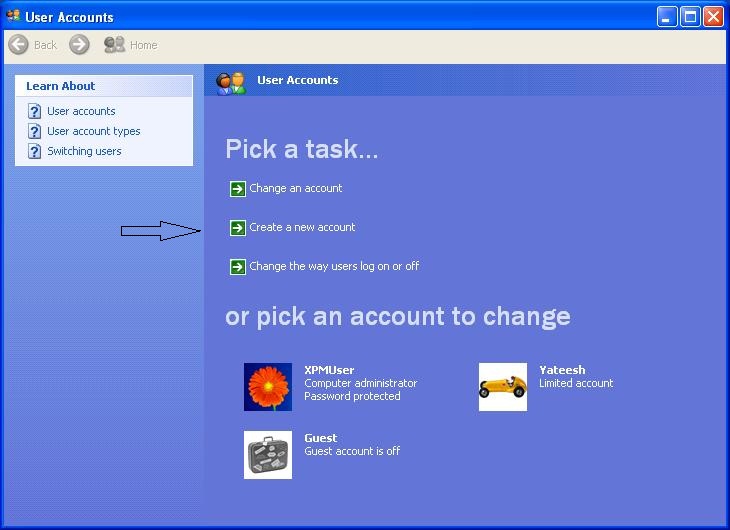
  • Click Create a New Account in the User Accounts window.


Thursday, November 11, 2010

Disable Fast User Switching

Fast User Switching is a way for users to quickly switch between accounts without having to fully log off. This is just one more service that doesn’t really need to be started.If its only one single User using the Computer.

Follow the steps below to disable this service.

  • Click On Start--> Run--> Type 'services.msc'(Without the quotes)-->On The Right Pane Of The Window Select Fast User Switching--> Double Click On It-->Change Startup Type To Disable--> Click On Stop Button If The Service Is Already Running
  • Screenshots Have Been Show Below.


Search This Blog