Showing posts with label logon screen. Show all posts

Wednesday, June 15, 2011

I don’t want to use the Welcome screen

By default, Windows XP provides you with the Welcome screen, which gives an icon and a list of all users. In order to log on, you simply click your user name and provide your password, if necessary. However, you don’t have to use the Welcome screen if you don’t want to. Once removed, a standard Windows logon dialog box appears, in which you will have to type your user name and password.

Note
In cases where several people use a computer, such as in an office, you might want to remove the Welcome screen for added security. If you remove the Welcome screen, no one will know the user names of other people who log on to the computer.

To remove the Welcome screen, follow these steps:
 
1. Log on with an administrator account.

2. Click Start--> Control Panel--> User Accounts.

3. In the User Accounts window--> click the Change the Way Users Log On or Off option.

In the Select Logon and Logoff Options window--> clear the Use the Welcome Screen check box and click the Apply Options button.

Thursday, May 5, 2011

Computer Returns to Logon Screen When Idle

Cause

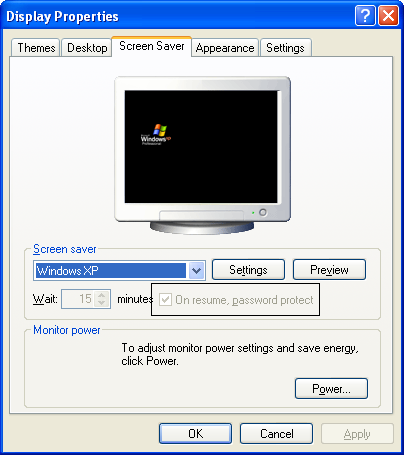
As a safety feature, Windows XP sends you back to the logon screen if the computer is idle for a certain period of time. This can be a real pain, but the problem is easily fixed. This XP security feature works with screen saver functions and you can easily stop it from happening.

To stop XP from taking you back to the logon screen after an idle period, follow these steps:

1. Click Start--> Control Panel.


2. Double-click Display--> and then click the Screen Saver tab.


3. On the Screen Saver tab--> clear the check box that says On Resume, Password Protect.

Saturday, February 5, 2011

Turn off the logon screen saver

When you start Windows, you may be presented with the Windows XP welcome screen, which prompts you click your user name to begin, or you may be presented with a Welcome to Windows dialog box that prompts you to press CTRL+ALT+DEL to log on.

This task contains steps that tell you how to modify the registry. However, serious problems might occur if you modify the registry incorrectly. Therefore, make sure that you follow these steps carefully. For added protection, back up the registry before you modify it. Then, you can restore the registry if a problem occurs.

Follow the below steps to accomplish the task:

1. Click Start--> and then click Run.


Logon Screen Saver Timeout Time


To change the length of time before the logon screen saver starts, follow these steps. The default setting is 600 seconds (10 minutes).

This task contains steps that tell you how to modify the registry. However, serious problems might occur if you modify the registry incorrectly. Therefore, make sure that you follow these steps carefully. For added protection, back up the registry before you modify it. Then, you can restore the registry if a problem occurs.


Friday, February 4, 2011

Change the Logon Screen Saver In Windows XP


When you start Windows, you may be presented with the Windows XP welcome screen, which prompts you click your user name to begin, or you may be presented with a Welcome to Windows dialog box that prompts you to press CTRL+ALT+DEL to log on.


Search This Blog