Cause
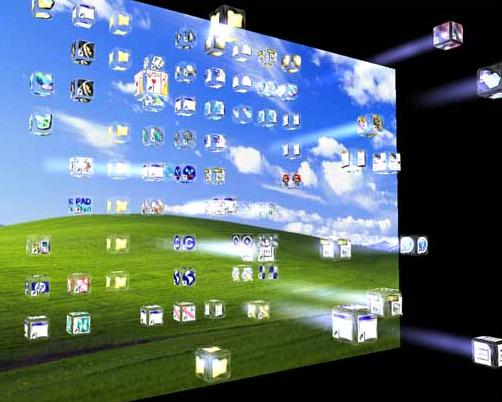
Windows XP attempts to make your life easier by removing all of the icons, except Recycle Bin, from the desktop.
Windows XP attempts to make your life easier by removing all of the icons, except Recycle Bin, from the desktop.
This may annoy you, however, so you can easily get back standard desktop icons if you want. You can do this in a couple of different ways, but the
easiest is to use the Customize Desktop feature.
To put icons back on the desktop, follow these steps:
1. Click Start--> Control Panel.
2. Double-click Display--> Click the Desktop tab.

3. Click the Customize Desktop button.

4. On the Desktop Items window--> General tab--> click the check boxes next to the desktop icons you want to show--> such as My Documents, My Computer, and so on. When you are done--> click OK.
easiest is to use the Customize Desktop feature.
To put icons back on the desktop, follow these steps:
1. Click Start--> Control Panel.
2. Double-click Display--> Click the Desktop tab.

3. Click the Customize Desktop button.

4. On the Desktop Items window--> General tab--> click the check boxes next to the desktop icons you want to show--> such as My Documents, My Computer, and so on. When you are done--> click OK.