Showing posts with label USB. Show all posts

Friday, August 5, 2011

One of my Game Controlers wont work


Cause: When you have more than one game controller, the computer will typically default to the first one you installed. However, you can change the default game controller so that the one you want to use always comes up first.


Thursday, August 4, 2011

My USB printer does not work


Cause: USB hubs allow a number of different devices to connect to them, but some devices can pull too much power, causing other devices not to work or not to work well.

Friday, July 8, 2011

My USB scanner does not work

Cause:  USB works with hubs, attachment ports to which you can attach USB devices. A USB hub can either be self-powered or bus-powered. A self-powered hub has a wall outlet that you plug in, in order to power the devices attached to the hub. Bus-powered hubs get their juice from the computer. Some devices, such as scanners and portable hard disks, need more power than the USB bus-powered hub can provide.

Wednesday, April 27, 2011

Missing USB Drive in Windows XP

Have you ever plugged in a USB drive or any external device with a hard drive and wondered why you cannot see it in My Computer?

More than likely the cause is that Windows renamed the drive to a letter that is already in use. This will happen if you have several card readers, thumb drives or external hard drives attached. It will also happen if you are on a network and have mapped drives.

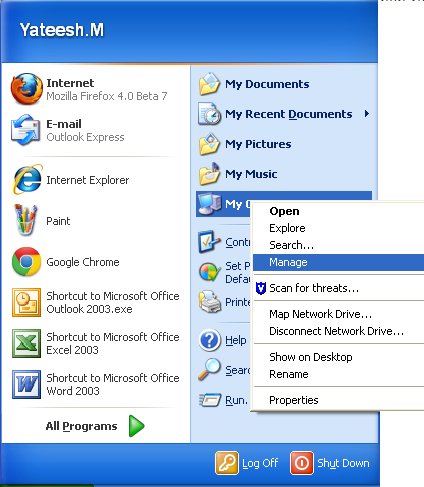
To find the drive and then rename it, you’ll want to right-click on My Computer and select Manage.


From the Computer Management screen, select Disk Management.


In this window you should see all of your connected physical drives, their format, if they are healthy, and the drive letter.


Right-click on the drive in the list, and from the resulting menu select “Change Drive Letters and Paths”


Click on Change so we can change the drive letter. You might notice that you can select Add, which would let you mount the drive into a folder if you wanted to.


Select a new drive letter from the drop down list, preferably the one that you usually use for this drive.


Click Yes on the confirmation screen and you are done


If you have auto play enabled, you will get the normal pop up dialog asking what you want to do.


Monday, April 11, 2011

USB Not working in Windows XP


SYMPTOMS:

When you plug a USB device into a Windows XP-based computer immediately after the computer resumes from standby or hibernation, the computer does not recognize the USB device. When this occurs, you receive the following warning message:
Unrecognized device has been found.

CAUSE:


When the computer resumes from standby or hibernation, there is a five-to-ten-second period when the selective suspend feature of the USB driver interferes with detection of the new USB device. The time delay depends on the following factors:
  •   Host controller hardware
  •   Attached hubs
  •   Attached devices
  •   USB driver versions
  •   Support for USB 2.0
  •   Additional system hardware or configurations that may change the timing

Search This Blog