Showing posts with label Display settings. Show all posts

Tuesday, May 10, 2011

Cannot use Windows XP Theme after making Changes

When you make a change to the Windows XP theme, Windows XP renames the theme
as Windows XP (Modified). You can easily return the default Windows XP theme at any time by choosing it from the steps below.

To use the default theme, follow these steps:

1. Click Start--> Control Panel.


2. Double-click Display--> Click the Themes tab.


3. In the Theme drop-down list--> select Windows XP--> and click OK to apply the default theme.

Wednesday, May 4, 2011

My display seems distorted

Cause

You really need a new video card. However, if you can't change the card just yet, you might resolve the problem by adjusting the hardware features of the card.

This is an easy try, so if the Issue is not solved there is no harm done.

To fix the distortion problem, follow these steps below:

1. Click Start--> Control Panel.


2. Open the Display icon by double-clicking it--> Click the Settings tab.


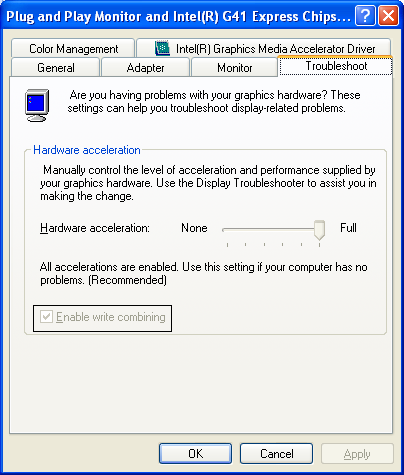
3. Click the Advanced button--> and then click the Troubleshoot tab


4. You can try to resolve the problem by lowering the Hardware Acceleration slider bar. When you move the bar a notch, you'll see what display features are being removed. You can try different settings and see if the problem is resolved.


5. Also, try clearing the Enable Write Combining check box. This may also resolve distortion problems.

You'll need to experiment here to see if the settings will help you,
but they may help you.

Desktop Icons are too Small or too Big

Cause:

The size of the icons on your desktop is determined by the resolution settings of your video card. If everything seems too big or too small, all you probably need to do is choose a different resolution so that items appear the size you want.

Follow the Below Steps To fix the size problem:

1. Click Start--> Control Panel.


2. Open the Display icon by double-clicking it--> Click the
Settings tab.


3. On the Screen Resolution setting--> use the slider bar to choose a different resolution- 800 × 600 pixels is right for most people. If you have a larger monitor (19" +), consider using a higher resolution.


4. If that does not work--> change the Dots Per Inch (DPI) settings for your display--> On the Display tab--> click the Advanced button.


5. This opens an Advanced Properties window--> Click the General tab--> If you want to make items on your desktop larger--> change the DPI Setting using the drop-down menu--> You'll need to restart your computer for the changes to take effect.

Search This Blog